
New Delhi3 minutes ago
- copy link
Google has launched a new feature in its email platform Gmail, through which you will now be able to change the username of your email ID (the part before (@gmail.com). According to the company, this is a way to upgrade your digital identity.
Currently, this update is for US users, which is a big relief for those who wanted to change their ‘weird’ username. Next we will tell you the complete process of changing it and important things related to the old address.
Google CEO Sundar Pichai posted on Now users do not need to stick with their old or ’embarrassing’ email address (e.g. coolboy123). Google is now providing the facility to change it.
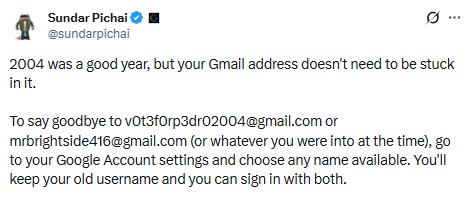
If the username is changed, the old email address will also remain.
As soon as you select your new Gmail address, your old email address will not be completely deleted.
- Alternate Email: Your old address will become an ‘alternate email’.
- Mail will come on both: You will receive emails from both the old and new addresses in the same inbox.
- Data Secure: Your old mail, photos, drive files and messages will not be affected.
- Login Facility: You will be able to log in to all Google services (like Maps, YouTube, Drive) with any email, old or new.
Keep these things in mind before making changes
Changing email is easy, but Google has asked to take some important precautions.
- App Settings: Changing emails may reset the settings of some apps, as does logging into a new phone.
- Backup: For safety, be sure to backup your Android data, contacts and photos.
- Chrome Sync: If you use the Chrome browser, you may need to double-check the sync settings.
Step-by-step process to change Gmail username
- Open the link: Go to myaccount.google.com/google-account-email on your device.
- Personal Info: Click on ‘Personal info’ in the top left.
- Email Option: Here go to ‘Email’ and then ‘Google Account email’.
- Edit: Click on ‘Change Google Account email’ option. (If this option doesn’t appear, the feature has not been activated yet).
- Select new name: Type your new username. Keep in mind that no one has used this name before.
- Confirm: Complete the process by clicking on ‘Change email’ and then ‘Yes, change email’.
You can change your username only once in 12 months
Google has also set some limitations with this feature.
- Limit: You will be able to create a new @gmail.com address only once in 12 months (one year).
- Lifetime Limit: Overall, you will be able to change your Gmail address only 3 times.
- Return way: You can switch back to your old email address at any time, but you won’t be able to delete it immediately after creating a new email.

Source link
[ad_3]

